
How to Set Up an RDP Connection (Remote Desktop)
Remote Desktop Protocol (RDP) is a technology developed by Microsoft Remote Desktop Protocol that lets you access and control another computer over a network as if you were sitting in front of it. This is useful for working from home, managing servers, providing support, or accessing your office PC remotely.
Prerequisites
Before you begin, make sure of the following:
- The host computer (the one you want to connect to) is powered on, awake (not in sleep mode), and connected to the network.
- The host computer is configured to allow remote connections (RDP enabled).
- If you’re connecting over the internet (outside your local network), the network/firewall allows incoming RDP traffic (default port TCP 3389), or you have set up proper port-forwarding/VPN.
- You have the IP address or hostname of the host machine, and valid user credentials (username & password).
A Server with Windows O. If you do not have a server already, you can visit our VPS hosting page and spin one up in under 30 seconds.
How to Remote Desktop to a Server
All Windows computers come pre-installed with Remote Desktop Connection. You can find this by going to Start and typing “Remote Desktop Connection” or “mstsc.” Once you see Remote Desktop Connection, click on it to open.
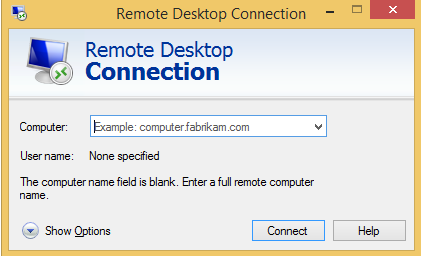
Remote Desktop Connection
When you have opened Remote Desktop Connection, you must enter the computer name or IP address of the computer/server. Once you have entered either one, click Connect.
Once you have clicked on Connect, you will be prompted if you trust this connection. If you do and do not want to see this message again, check the box beside “Don’t ask me again for connections to this computer.” Also, if you would like to connect your local drives, printers, or clipboard, click on the Show Details at the bottom left.
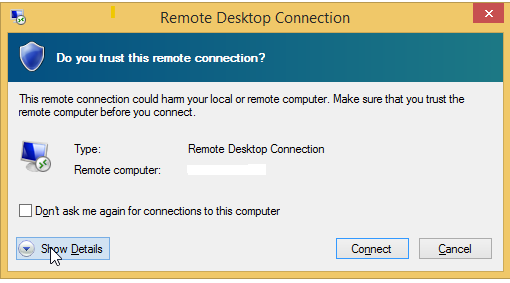
After clicking on Show Details, you will be able to check the boxes of which ones you would like connected as well.
Enter your Windows username and password
From Mac, iPhone, or Android:
- Install Microsoft Remote Desktop (free from App Store / Play Store)
- Add a new PC:
- PC name → your public IP (e.g.,
123.45.67.89:49210) - User account → Windows credentials
- PC name → your public IP (e.g.,
- Save → Connect