How to Change the Remote Desktop Port on Windows
By default, Windows Remote Desktop uses port 3389. For security or customization purposes, you may want to change this port. Below is a clear step-by-step guide on how to modify the RDP port safely.
1. Quick Method: Change RDP Port Using Command Line
To quickly replace the default RDP port number with the specified one, simply run the following commands with administrator privileges (in this example, we will change the port number that the Remote Desktop Service listens on to 1350):
set p=1350reg add "HKLM\SYSTEM\CurrentControlSet\Control\Terminal Server\WinStations\RDP-Tcp" /v PortNumber /t REG_DWORD /d %p% /fnetsh advfirewall firewall add rule name="Custom-RDP-Port-TCP" protocol=TCP localport=%p% action=allow dir=INnetsh advfirewall firewall add rule name="Custom-UDP-Port-UDP" protocol=UDP localport=%p% action=allow dir=INnet stop TermService /ynet start TermService
These commands will:
- Update the RDP port in the registry
- Add new firewall rules for the custom port
- Restart Remote Desktop Services

2. Manual Method: Change RDP Port via Registry Editor
- Press Windows Key + R, type regedit, and press Enter.
- Navigate to:
HKEY_LOCAL_MACHINE\System\CurrentControlSet\Control\Terminal Server\WinStations\RDP-Tcp
- Locate the PortNumber DWORD value.
- Double-click it → choose Decimal → enter your new port (e.g., 1350).
- Click OK to save changes.
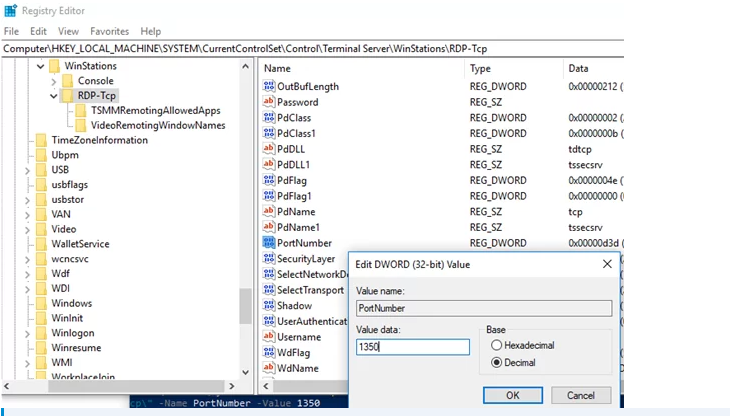
You can change the registry parameter by using PowerShell: Set-ItemProperty -Path "HKLM:\System\CurrentControlSet\Control\Terminal Server\WinStations\RDP-Tcp\" -Name PortNumber -Value 1350
- 4. Allow the New Port in Windows Firewall
Important: If you're doing this on a remote server, create the firewall rule before restarting Remote Desktop Services. Otherwise, you may lose access.
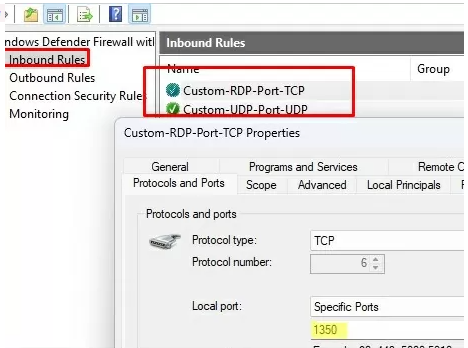
- Create inbound rules for both TCP and UDP:
New-NetFirewallRule -DisplayName "NewRDPPort-TCP-In" -Direction Inbound -LocalPort 1350 -Protocol TCP -Action Allow
New-NetFirewallRule -DisplayName "NewRDPPort-UDP-In" -Direction Inbound -LocalPort 1350 -Protocol UDP -Action Allow
(Or manually via Windows Defender Firewall → Inbound Rules.)
5- Restart Windows or restart the Remote Desktop Services with the command: net stop termservice & net start termservice
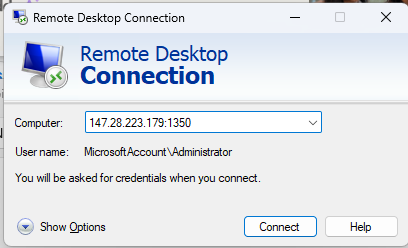
6- To connect to the Remote Desktop on this Windows computer using a custom RDP port, enter the port number in the mstsc.exe client after the IP address or hostname, separated by a colon, like this: RDPComputerName:1350 or by IP address: IP ADDRESS:1350 or from the command prompt: mstsc.exe /v IP ADDRESS:1350