
Crystal Reports: “Maximum Report Processing Jobs Limit” Error (Resolved)
When generating or processing a large number of Crystal Reports, you may encounter the following error message:
“The maximum report processing jobs limit configured by your system administrator has been reached.”
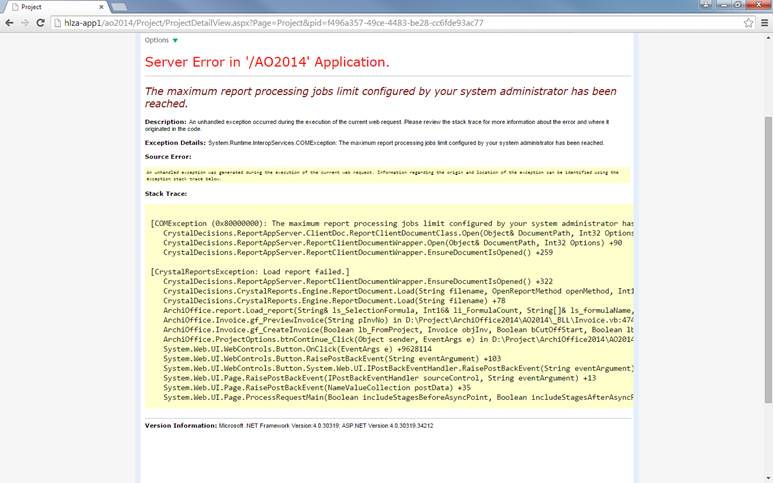
This error occurs when Crystal Reports exceeds the maximum number of concurrent print jobs allowed. By default, this limit is set to 75.
Cause
Crystal Reports enforces a hard limit on the number of report processing jobs to manage system performance and resource usage. Once this threshold is reached, new report requests fail until the counter is reset.
Solution 1: Reset IIS (Recommended)
Resetting IIS clears the job counter and restores normal functionality.
Steps:
- Open the Command Prompt as an administrator.
- Run the following command: iisreset
- Wait for IIS to restart. The job counter will reset to 0.
💡 Tip: Depending on your server’s report load, you may need to perform this reset daily or several times per day.
Solution 2: Increase the Job Limit (Optional)
If you prefer to increase or remove the job limit, you can adjust the registry setting.
Steps:
- Open the Registry Editor (
regedit). - Navigate to:
Computer\HKEY_LOCAL_MACHINE\SOFTWARE\WOW6432Node\
SAP BusinessObjects\Crystal Reports for .NET Framework 4.0\
Report Application Server\InprocServer
Find the key PrintJobLimit.
Change its value:
- Set a higher number to increase the limit.
- Set to -1 for unlimited jobs.
⚠️ Important: Increasing this limit may degrade server performance. Always consult your IT administrator before making this change.
Recommendation
For most environments, resetting IIS is the safest and most effective method. Adjusting registry values should only be done when absolutely necessary and with proper performance monitoring.