
How do I register a domain name?
Ready to secure the perfect domain name? Look no further! As an ICANN-accredited registrar, Navicosoft makes domain registration easy and secure. With over 120+ extensions available, you’ll find the ideal domain for your website or business quickly. Whether starting a blog, an online store, or building your brand, we’ve got you covered.
Follow these simple steps to bring your online vision to life:
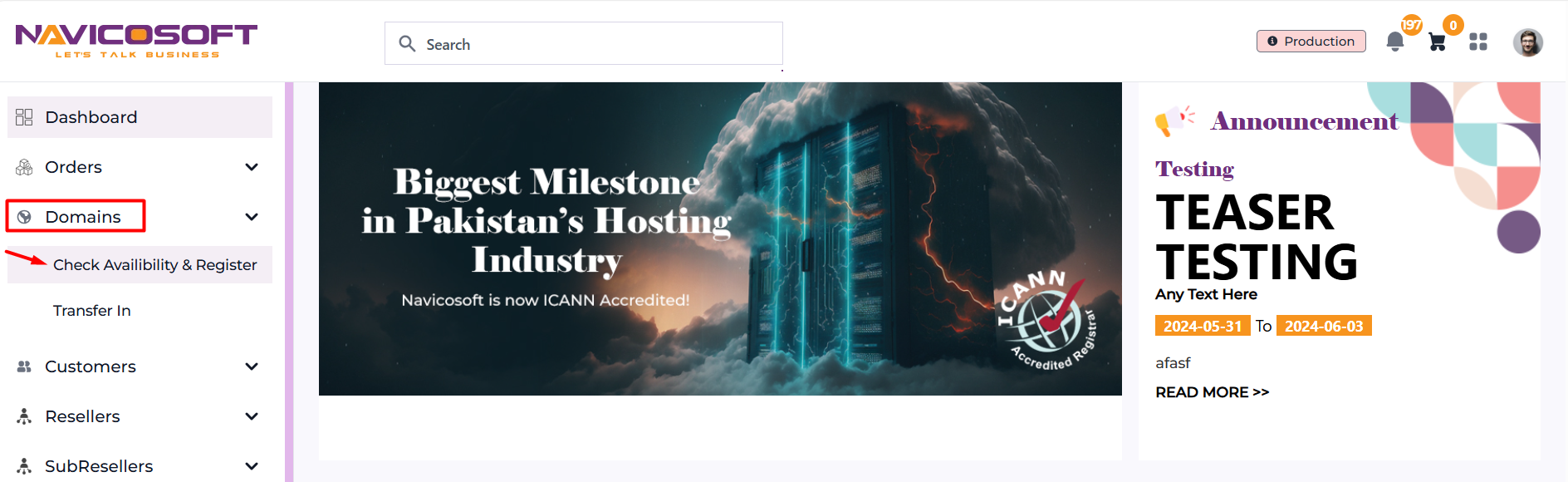
- Click on "Domains" from the main menu. A dropdown will appear—select "Check Availability & Register."
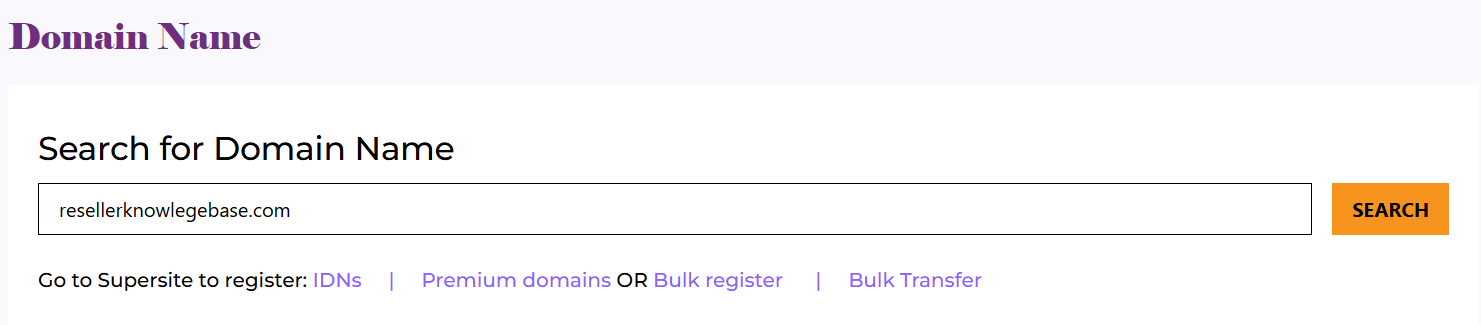
- Enter the domain name you wish to register in the search bar. You can choose to enter your domain name with an extension and click on the "SEARCH" button.
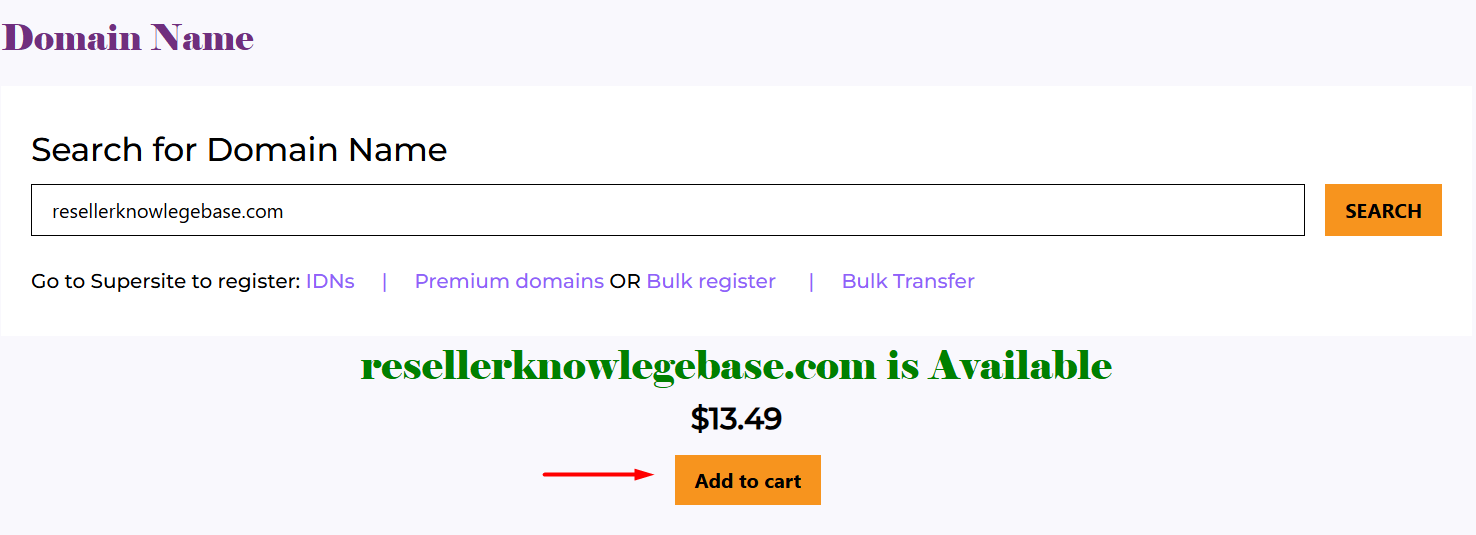
- Once you've found the domain you want, click the shopping cart button below the domain name.
- The item(s) will briefly appear in the top right-hand corner of the page as they’re added to your shopping cart.
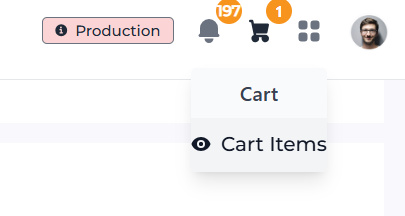
Click on the shopping cart and then "Cart Items" to review your selection.
- After Clicking, you’ll be redirected to the billing page, where you’ll need to enter the email address for "Who Are You Buying For." After entering the details, click the "Confirm" button.
- At this point, you can update the domain's Nameservers and enter your contact details. On the right side of the page, you’ll see an Order Summary. Once everything is confirmed, click "Place Order" to complete your purchase.
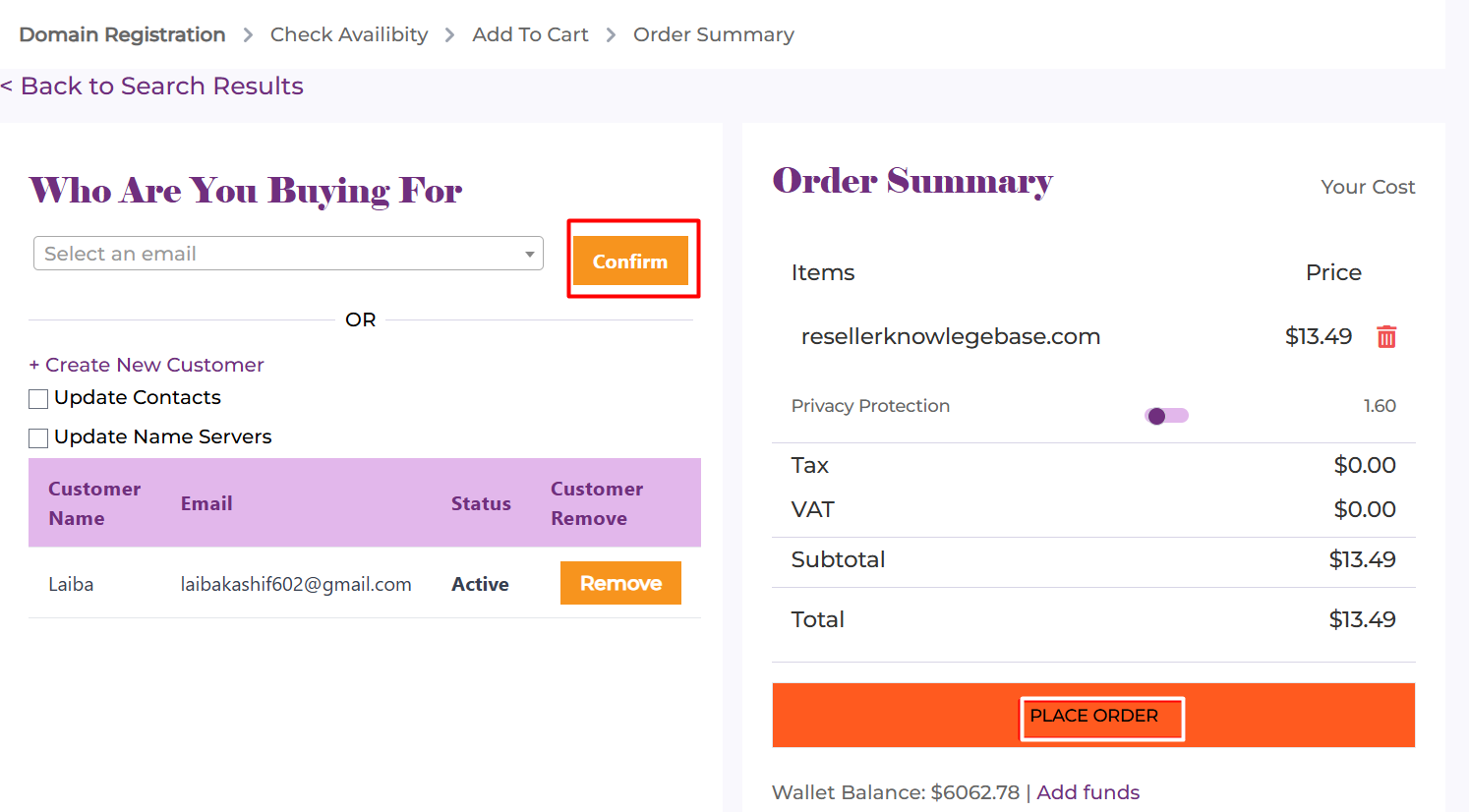
At this point, you can also add Privacy Protection for your domain to keep your personal information safe and secure.