
How to Connect to Your VPS via SSH Using PuTTY
Secure Shell (SSH) is the standard method to remotely manage your VPS (Virtual Private Server) securely. On Windows, one of the most popular tools to use SSH is PuTTY, a lightweight and free client.
In this tutorial, we’ll guide you step-by-step on how to connect to your VPS using PuTTY.
What You Need Before You Start
- A Windows PC
- Your VPS IP address
- Root username (usually
root) - Password (or private SSH key, if applicable)
- PuTTY software installed
Step 1: Download and Install PuTTY
- Go to the official PuTTY website:
https://www.chiark.greenend.org.uk/~sgtatham/putty/latest.html - Download the correct version for your system (usually
putty.exefor Windows 64-bit). - Run the installer and follow the installation instructions.
Step 2: Launch PuTTY and Enter Your VPS Details
- Open PuTTY from the Start Menu or Desktop.
- In the Host Name (or IP address) field, type your VPS IP address.
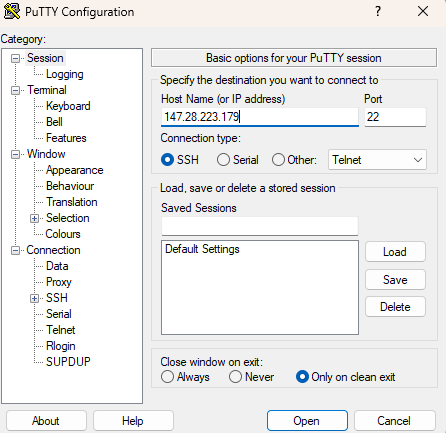
3. Make sure the Port is set to 22 (default for SSH).
4. Connection type should be SSH (selected by default).
Step 3: Connect and Login
- Click Open to start the SSH session.
- The first time you connect, a security alert will appear. Click Yes to trust the host.
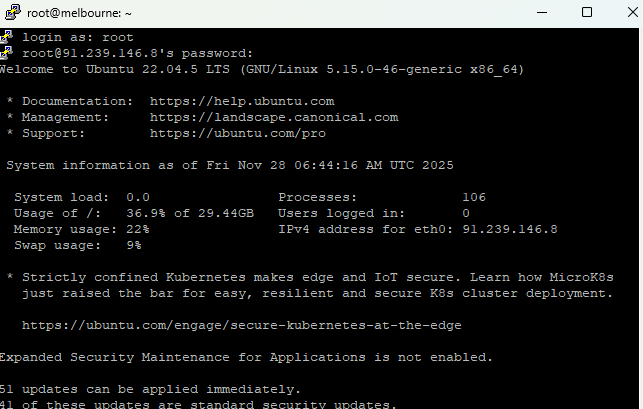
- A terminal window will appear asking for a login name. Type:
root - Next, enter your password. (You won’t see characters as you type — this is normal.)
- If successful, you’ll now be logged into your VPS and see a welcome message or shell prompt.
Optional: Using a Private SSH Key (Advanced Users)
- If your VPS requires SSH key authentication:
- Use PuTTYgen (installed with PuTTY) to generate or convert your private key to
.ppkformat. - In PuTTY:
- Go to Connection > SSH > Auth
- Click Browse and select your
.ppkfile
- Go back to Session, enter your IP, and Open the connection.
Troubleshooting Tips
❌ Connection refused? Make sure your VPS is online and port 22 is open.
🔐 Wrong login/password? Double-check your credentials.
🧱 Firewall blocks PuTTY? Check local firewall or antivirus settings.
🛡️ Can’t login with root? Some providers disable root login by default. Use a different user account.
Conclusion
You’re now successfully connected to your VPS via SSH using PuTTY! 🎉
From here, you can update software, install packages, configure services, or deploy applications.
For frequent access, consider setting up SSH keys and saving your session profiles for convenience.